Apple M-Series Chips: M1 to M5 MacBook Buying Guide
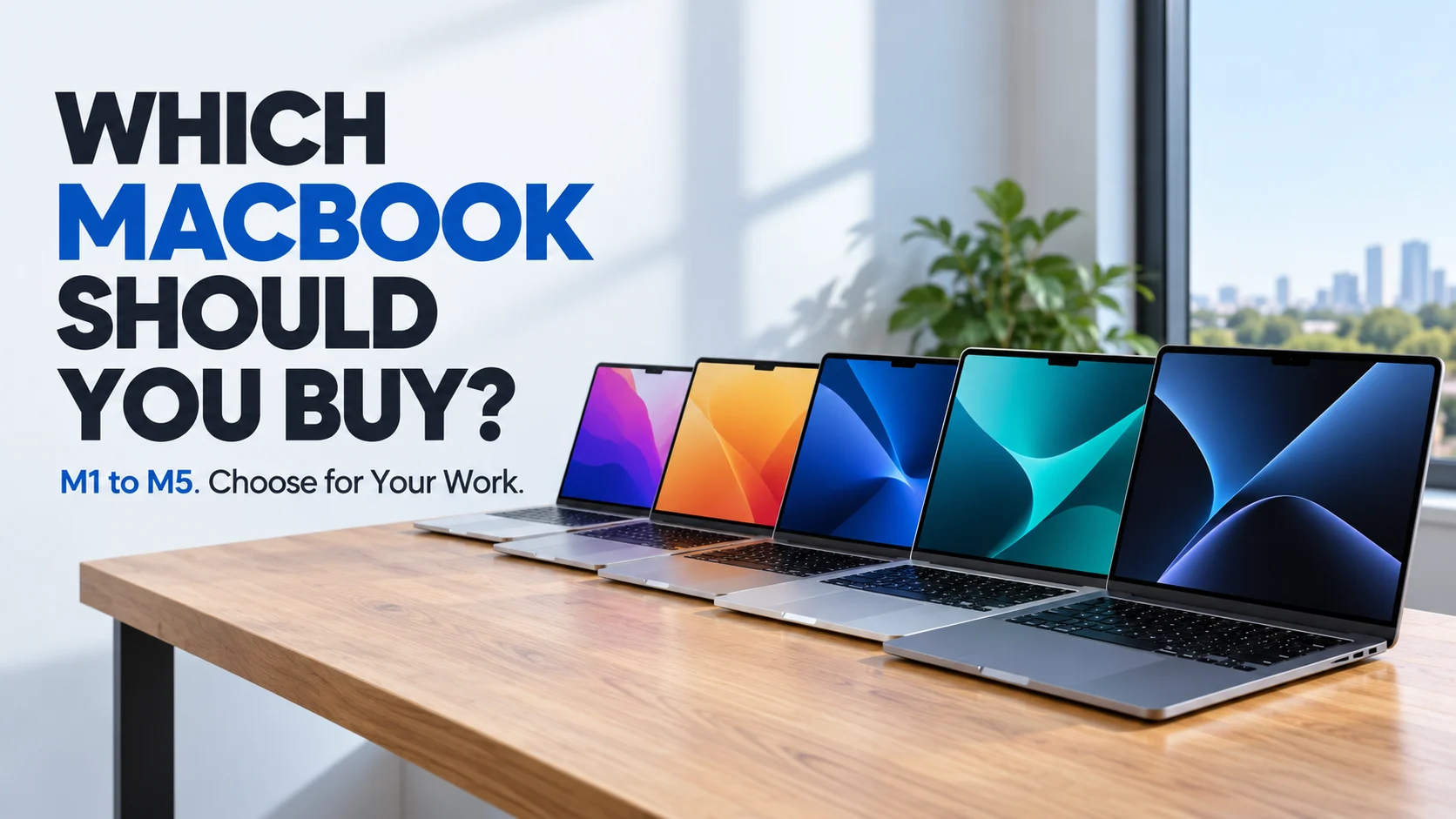
The newest MacBook chip is not always the smartest purchase. Compare Apple’s M1–M5 generations, understand base, Pro and Max chips, and discover why memory, cooling and software compatibility can matter more than a generation number. Find the configuration that fits your work, rather than paying for features you will rarely use.
On this page
- Apple M-Series Chips Explained: Which MacBook Should You Buy?
- What Are Apple M-Series Chips?
- Base, Pro or Max: Choose the Workload Before the Generation
- From M1 to M5: What Changed?
- Memory, Storage and Cooling Can Matter More Than One Generation
- Three Fahavi MacBook Configurations Worth Comparing
- Should You Upgrade Your Current MacBook?
- How to Check Your Mac’s Chip
- Related Fahavi Guides and MacBooks
- Questions Buyers Ask About M-Series MacBooks
- Choose the MacBook That Fits Your Applications
Apple M-Series Chips Explained: Which MacBook Should You Buy?
For most students and office users comparing Apple M-series chips, our starting pick is the refurbished M4 MacBook Air with 16GB memory. Choose the M5 Air 24GB/1TB when you need more working capacity and storage. Choose the base-M5 MacBook Pro for its display and active cooling. Move to a Pro or Max chip when your applications justify the extra resources.
The mistake is buying the newest chip while overlooking the memory you cannot add later. Another is paying for a MacBook Pro because you assume it contains a Pro chip. Neither shortcut tells you whether the laptop fits your work.
This M1-to-M5 guide helps you choose the right generation, chip tier and complete MacBook. Start with the buying advice, then use the technical explanations to understand what you are paying for.
Find the Right MacBook for My Applications
New and refurbished options | Physical shop in Nairobi CBD | Configuration and warranty terms confirmed before purchase
What Are Apple M-Series Chips?
Apple silicon refers to Apple-designed processors. The M-series brought that approach to Macs, with the transition from Intel beginning in late 2020. These chips use an Arm-based architecture designed to work closely with macOS.
One Integrated Platform, With Several Different Jobs
A system on a chip, or SoC, combines components such as the CPU, GPU, memory controller, Neural Engine and media engines. The CPU runs general instructions; the GPU handles graphics and suitable compute workloads; specialised engines accelerate supported tasks.
Unified memory lets these components share a memory pool, reducing some copying between separate memory areas. Memory chips are closely integrated within the package, rather than supplied as removable laptop RAM modules. The processor and memory work as one coordinated system, although they are not simply one undifferentiated silicon die.
This integration helps explain the efficiency of Apple silicon. It also means buyers should choose enough memory at purchase, because these MacBooks do not provide ordinary RAM slots for later expansion.
Why Apple Moved Away From Intel
The transition gave Apple control over the processor architecture and its integration with the operating system. Performance per watt became a central advantage, supporting capable portable computers without relying only on higher power consumption.
The useful advantage is getting suitable performance without choosing a larger laptop solely for power or cooling. A comparison with a Windows machine still needs the exact applications and configuration. Apple documented the original architecture in its M1 introduction .
Battery Life Belongs to the Whole Laptop
Apple advertises up to 18 hours for the M5 MacBook Air under its specified testing. That is not a promise of 18 hours of rendering, video calls or gaming. Brightness, workload, peripherals and battery condition affect actual runtime.
The Air’s fanless design keeps fan noise out of your working environment. A MacBook Pro uses active cooling, which becomes relevant when demanding work continues for long periods.
Base, Pro or Max: Choose the Workload Before the Generation
The tier describes a different class of resources, not simply a label for how professional you are. A writer earning a living from a Mac does not automatically need a Pro chip.
Scroll sideways on a phone to compare the tiers.
| Chip Tier | Start Here For | Reason to Step Up |
|---|---|---|
| Base M1 to M5 | Study, documents, business work, moderate development and supported photo or video tasks. | Sustained projects need more CPU, GPU or memory resources. |
| Pro | Larger builds, demanding audio sessions and regular professional creative workloads. | GPU-heavy projects or memory needs exceed the chosen Pro configuration. |
| Max | Supported 3D work, demanding video pipelines and suitable local AI workloads. | Choose only when the additional resources serve a real requirement. |
Base Chips: More Than Basic Browsing
Choose a base chip for everyday productivity, moderate coding and supported photo or video work. These chips are not limited to browsing. Step up when your project size, sustained processing or memory requirements exceed the chosen configuration.
Pro Chips: A Step Up for Repeated Demanding Work
Consider Pro when larger builds, complex audio projects or demanding creative work form your normal routine. Check the exact CPU, GPU, memory and media-engine configuration rather than assuming every Pro generation is identical.
Max Chips: Buy for GPU and Memory Demand
Max is most compelling when its additional graphics resources, bandwidth or memory capacity can be used. A mainly CPU-bound task may not justify the difference. For music production, plugin compatibility, memory and audio-interface behaviour can matter more than the biggest GPU.
M5 Pro and M5 Max are released products, introduced in March 2026. Apple’s official announcement explains their architecture. For local purchasing, use Fahavi’s listed configurations rather than assuming every Apple variant is available.
From M1 to M5: What Changed?
There are two comparisons to make: generation against generation, and tier against tier. A base M5 and an M1 Max are not equivalent classes of chip. Compare CPU work, graphics work and memory needs separately.
Scroll sideways on a phone to compare the generations.
| Generation | Base Chip Introduced | Main Development | Buying Verdict |
|---|---|---|---|
| M1 | 2020 | The foundation of Apple-silicon Macs. | Keep a suitable working machine; assess age, memory and condition before buying used. |
| M2 | 2022 | More memory bandwidth, up to 24GB memory and ProRes acceleration. | A useful option when configuration and total value beat newer alternatives. |
| M3 | 2023 | 3nm manufacturing and a redesigned GPU with hardware ray tracing. | Relevant when supported graphics workloads benefit. |
| M4 | 2024 | Faster processing and stronger machine-learning hardware. | A sensible generation to compare for everyday and professional productivity. |
| M5 | 2025 | GPU Neural Accelerators and higher memory bandwidth. | Consider for supported AI and graphics work, with enough memory for the project. |
Chip introduction is not the same as a MacBook Air release date. M4 first appeared in 2024, but the M4 Air followed in 2025; the M5 Air arrived in 2026.
M1: The Foundation, Introduced in 2020
M1 established the modern Apple-silicon Mac platform, bringing CPU, GPU, Neural Engine and unified memory into a tightly integrated design. It made efficient portable performance a central part of the Mac buying decision.
An older M1 can still be useful when its memory, battery condition and software support meet the job. Avoid choosing it only because it is an inexpensive route into Apple hardware. An 8GB configuration may be restrictive for a workload that needs more.
M2: More Graphics and Memory Headroom
Introduced in 2022, the base M2 increased memory bandwidth and supported up to 24GB unified memory, compared with the base M1’s 16GB limit. It also added dedicated ProRes acceleration to the base-chip media engine.
Buying verdict: consider M2 when it gives you the memory, condition and storage you need at a worthwhile total cost. An 8GB M2 is a different proposition from a 16GB or 24GB version. See Apple’s M2 overview for the underlying changes.
M3: A Significant Graphics Redesign
The M3 family arrived in 2023 using 3-nanometre manufacturing. It introduced Dynamic Caching, hardware-accelerated ray tracing and mesh shading to the Mac chip family.
These features help supported graphics workloads. They do not make every Windows game available on macOS or guarantee a particular frame rate. Check the actual game, graphics requirements and operating-system support.
Apple’s M3 family announcement details the graphics changes.
M4: Stronger Processing and Machine-Learning Hardware
M4 debuted in 2024, initially in iPad Pro, with a faster CPU design and a substantially more capable Neural Engine. M4 Macs followed; the M4 MacBook Air arrived in 2025.
Buying verdict: M4 is a strong comparison point for buyers who want capable everyday computing without paying solely for the newest badge. Prioritise a suitable memory and storage configuration over a minimal configuration with a newer chip.
M5: Neural Accelerators in the GPU
The base M5 launched in 2025 and added a Neural Accelerator in each GPU core, alongside a faster Neural Engine and increased memory bandwidth. M5 reached the MacBook Air in March 2026.
The important detail is GPU cores. This is not a claim that every core in the system contains the same accelerator or that all AI processing uses one route. Apple’s M5 architecture announcement explains the distinction.
Can M5 Run AI Entirely Offline?
It can run suitable local models when software, memory and downloaded resources support them. That does not mean every AI feature works offline. Model size, application design and required services remain important.
Apple Intelligence also uses cloud processing for some requests. Apple’s Private Cloud Compute guide distinguishes local processing from more demanding cloud workloads.
Memory, Storage and Cooling Can Matter More Than One Generation
For a general-purpose MacBook purchase, start your comparison at 16GB unified memory. Consider 24GB or a higher supported configuration when several demanding applications, larger projects or local development tools run together.
Unified memory is shared by the CPU and GPU. It does not follow a fixed conversion where 8GB equals 16GB in another computer. A faster chip cannot make every oversized project fit into insufficient capacity.
Choose internal storage for applications and working files, then plan a separate backup. External storage can add file space, but it cannot increase unified memory. It may also mean carrying a drive and cable when you travel.
MacBook Air or MacBook Pro?
Choose Air when portability, silence and ordinary-to-moderate workloads are the priorities. Choose Pro when sustained processing, its display or its connections justify the larger purchase. The chip name alone does not describe the full laptop experience.
A base M5 MacBook Pro is still a base-chip machine. Its cooling and other hardware distinguish it from the Air; the word “Pro” on the lid does not turn its processor into M5 Pro.
Check Your Desk Setup Too
If you use external monitors, confirm the exact MacBook’s supported display count, resolution and connection requirements. Do the same for docks, audio interfaces and other equipment you rely on. A suitable chip can still be the wrong purchase if the laptop does not support your intended desk setup.
Check Applications Before Moving From Windows
Confirm the exact macOS versions of your essential software, plugins and peripherals. Specialist business systems, engineering tools and games may have different requirements. Rosetta supports many Intel-based Mac apps, but it is not a universal Windows-application converter.
Three Fahavi MacBook Configurations Worth Comparing
Start with these three configurations. Each solves a different buying problem; the product links show current price and availability. Selection is based on listed specifications and Apple documentation, rather than hands-on testing.
Refurbished M4 MacBook Air: Start Here for Everyday Productivity

Our starting option for writing, study and office work is the refurbished M4 Air with 16GB memory and 256GB SSD . It combines a 13.6-inch display with enough memory to make it worth comparing for general productivity.
The main compromise is storage. Decide whether 256GB accommodates your applications and files. It carries a six-month refurbished warranty; request the actual battery assessment before choosing a pre-owned unit.
New M5 MacBook Air 24GB: More Working Room Without a Pro Chassis
Our portable higher-capacity pick is the new M5 Air with 24GB unified memory and 1TB SSD . Its 13.6-inch display, 10-core CPU and 10-core GPU suit buyers who want more memory and storage while retaining the Air format.
The trade-off is fanless cooling for long, demanding processing sessions. Compare sustained workload needs with a Pro before deciding. Applicable manufacturer warranty terms govern this new configuration.
View the M5 Air 24GB Configuration
New 14-Inch M5 MacBook Pro: Choose for the Whole Laptop

Compare the new M5 MacBook Pro with 16GB memory and 1TB SSD when the 14.2-inch Liquid Retina XDR display, ProMotion and active cooling matter. It has a 10-core CPU and 10-core GPU.
Its 16GB memory is lower than the Air configuration above. For memory-heavy work, that difference can be more important than the chassis name. Manufacturer warranty terms apply.
Should You Upgrade Your Current MacBook?
From an Intel Mac: Look at the Entire Working Experience
An Apple-silicon Mac can be a meaningful move when your Intel machine struggles with battery endurance, heat or the applications you now use. Before switching, confirm your essential software, plugins and devices work on the new platform. Do not assume an existing Windows setup will transfer unchanged.
From M1 or M2: Replace a Limitation, Not a Year
If your Mac remains responsive, runs supported software and has a healthy battery, keeping it can be the right decision. Upgrade when memory pressure, processing time or other limitations repeatedly interrupt your work.
If an 8GB machine feels cramped, moving to another 8GB machine may preserve the main problem. A suitable 16GB or 24GB configuration can be a more useful change than one generation alone.
From M3 or M4: Be Specific About What Improves
For ordinary writing, spreadsheets, browsing and meetings, first ask what your current Mac fails to do. Consider M5 when supported GPU or local AI work will use its changes, or when the replacement also brings needed memory, storage, display or connectivity improvements.
A faster export matters most when you repeat it frequently. A feature that saves time once a month may be less valuable than memory or storage you benefit from every day.
How to Check Your Mac’s Chip
- Click the Apple menu in the top-left corner of your screen.
- Select About This Mac.
- Read the Chip entry, including any Pro or Max suffix.
- Note the memory capacity as well, so you can compare complete configurations.
An Intel-based Mac shows a Processor entry instead. Apple explains the distinction in its Apple silicon identification guide . Avoid sharing your serial number publicly when asking for buying advice.
Questions Buyers Ask About M-Series MacBooks
Do I need a Pro chip for university or office work?
Usually not. Start with a base-chip MacBook Air and sufficient memory, unless your course or applications require more. Compare available Fahavi MacBooks around those requirements.
Is a newer base chip always better than an older Pro or Max?
No. A newer base chip may improve certain tasks, while an older higher-tier chip can offer more GPU resources, bandwidth or memory capacity. Compare the exact workload and configurations.
Does every MacBook Pro have a Pro chip?
No. Some MacBook Pro models use a base M-series chip. The 14-inch M5 listing is one example.
Can I upgrade unified memory later?
There is no ordinary user RAM upgrade on these MacBooks. Choose the required memory at purchase. An external SSD adds storage, not unified memory.
Will I get 18 hours of battery life?
Not necessarily. Apple’s up-to figure follows specified testing, while workload, brightness and battery condition affect your result. Ask for the actual battery assessment on a refurbished unit.
Does M5 make every AI feature work offline?
No. Suitable local models can run on device, but some features use cloud services. Software support, model size and installed memory determine what you can run locally.
Should I replace an M1 MacBook that still works well?
Not just because newer generations exist. Upgrade when memory, software support, battery condition or processing time limits your work. A newer machine should solve a specific problem.
Choose the MacBook That Fits Your Applications
Tell Fahavi Computers what you use, how much memory you need and whether portability or sustained performance comes first. We can help you compare the complete configuration rather than choosing from M1, M4 or M5 alone.
Visit Shop H29, 2nd Floor, Superior Centre, junction of Kenyatta Avenue and Kimathi Street, Nairobi CBD. Open Monday to Saturday, 8:00 AM to 7:30 PM; holiday hours may vary.
Call +254 720 635 023 or +254 700 827 638. Visit the shop, order online or contact Fahavi Computers for availability before purchasing. M-Pesa, cash and bank transfer are available; agree on stock, charges and timing for same-day Nairobi delivery.